 Docs-ONEQ
 Hangul (HWP)Edit by chat
Revises sentences and table text in HWP and HWPX documents as tracked changes. Hangul is the Hancom word processor used across Korean public institutions.
Open a Hangul (HWP), Word or Excel file and an editing window docks right beside it. Describe the change you want. In Hangul and Word, Docs-ONEQ adds proposed edits as tracked changes; for Excel, it shows what will change before applying it. Only the changes you approve go into the document.



 Edit Hangul, Word and Excel · Read PowerPoint and PDF
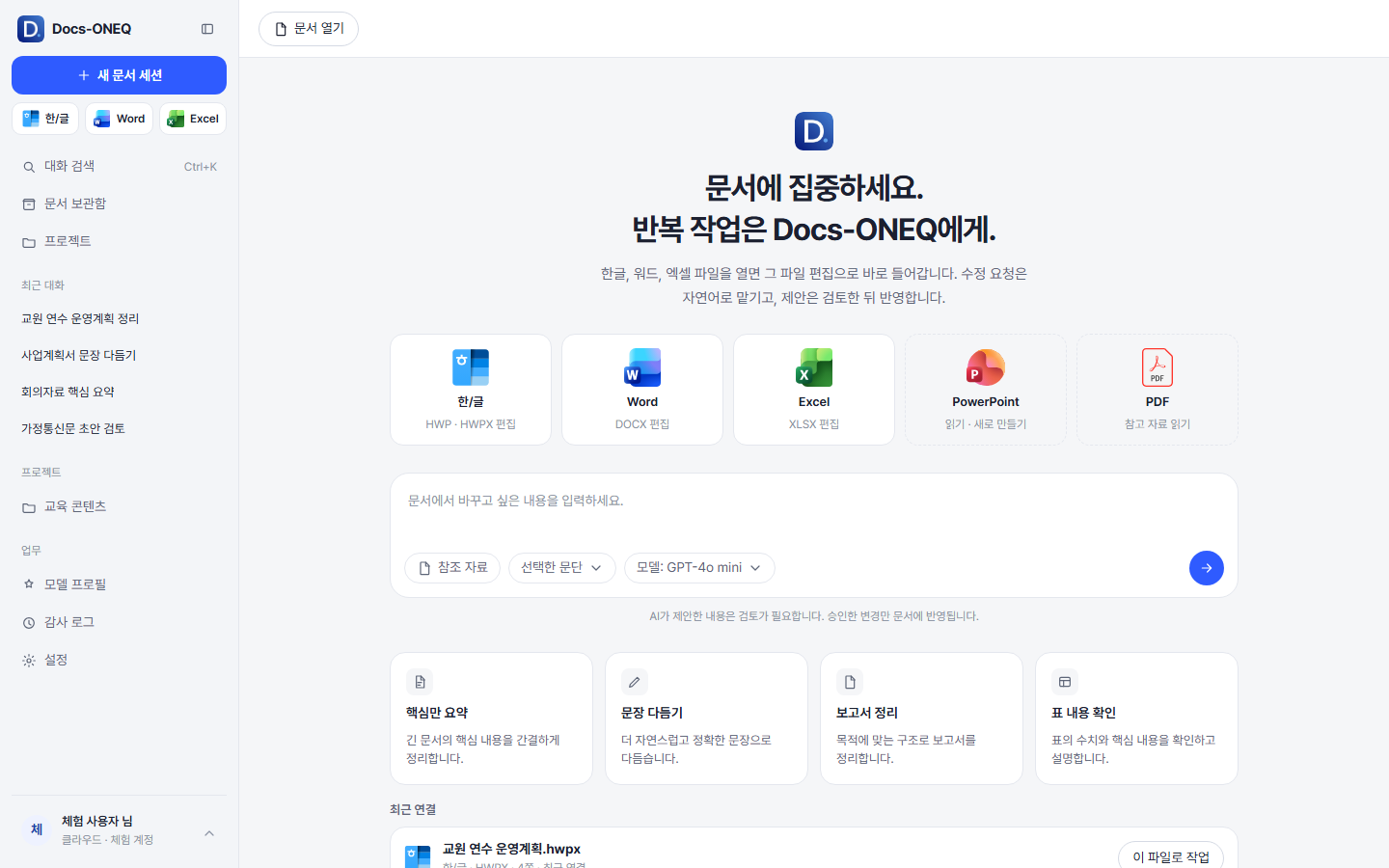
Hangul, Word and Excel files are edited right where they are open. PowerPoint and PDF files are read as source material, and new documents can be created when you need them.
Hangul (HWP)Edit by chatRevises sentences and table text in HWP and HWPX documents as tracked changes. Hangul is the Hancom word processor used across Korean public institutions.
WordEdit by chatEdits DOCX documents; you then resolve every change with Accept all or Reject all.
ExcelEdit by chatShows the code it will run before changing cell values or formulas. An approved change applies right away, and you save the file in Excel.
PowerPointRead · createReads and summarizes slides and creates new presentations. Editing an open file is not supported yet.
PDFRead as referenceReads text-based PDF guidelines and official letters and uses them as reference material. Scanned image PDFs cannot be read yet.
Your documents stay open in Hangul or Office on your own PC, and Docs-ONEQ works beside them through chat. The app interface is currently in Korean.
Pick a file from the format cards and its editing window docks on the right. Then ask in plain language, for example: “Make the conclusion paragraph more concise.”
Each change is shown first as original and revised text, and for Excel you see the code that will run. You choose to approve once, reject, or reject with a reason.
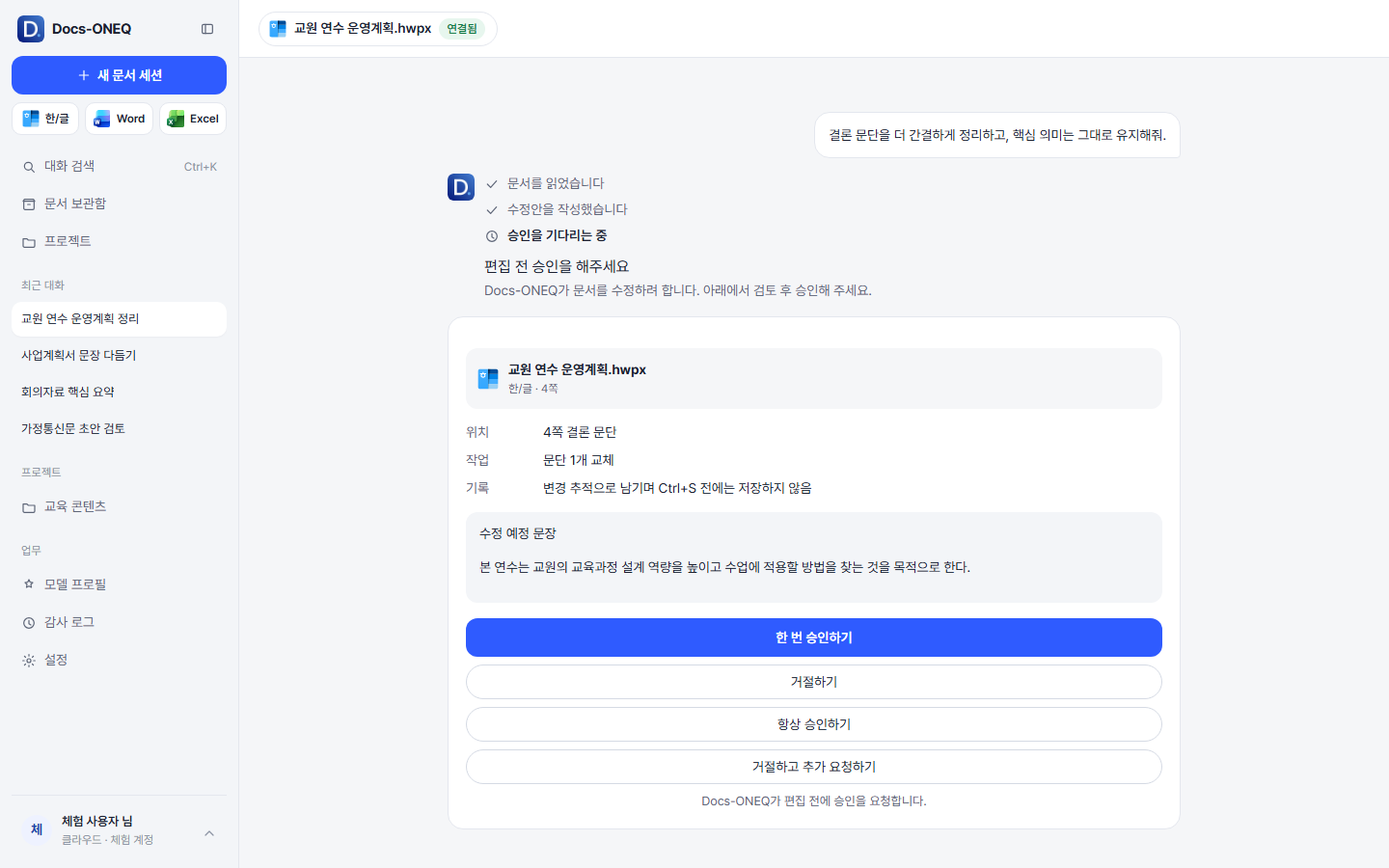
Hangul and Word edits go in as tracked changes. Review them in the document window, accept all and save, and only then are they written to the file. In Excel an approved change applies to the cells right away, and you save in Excel.
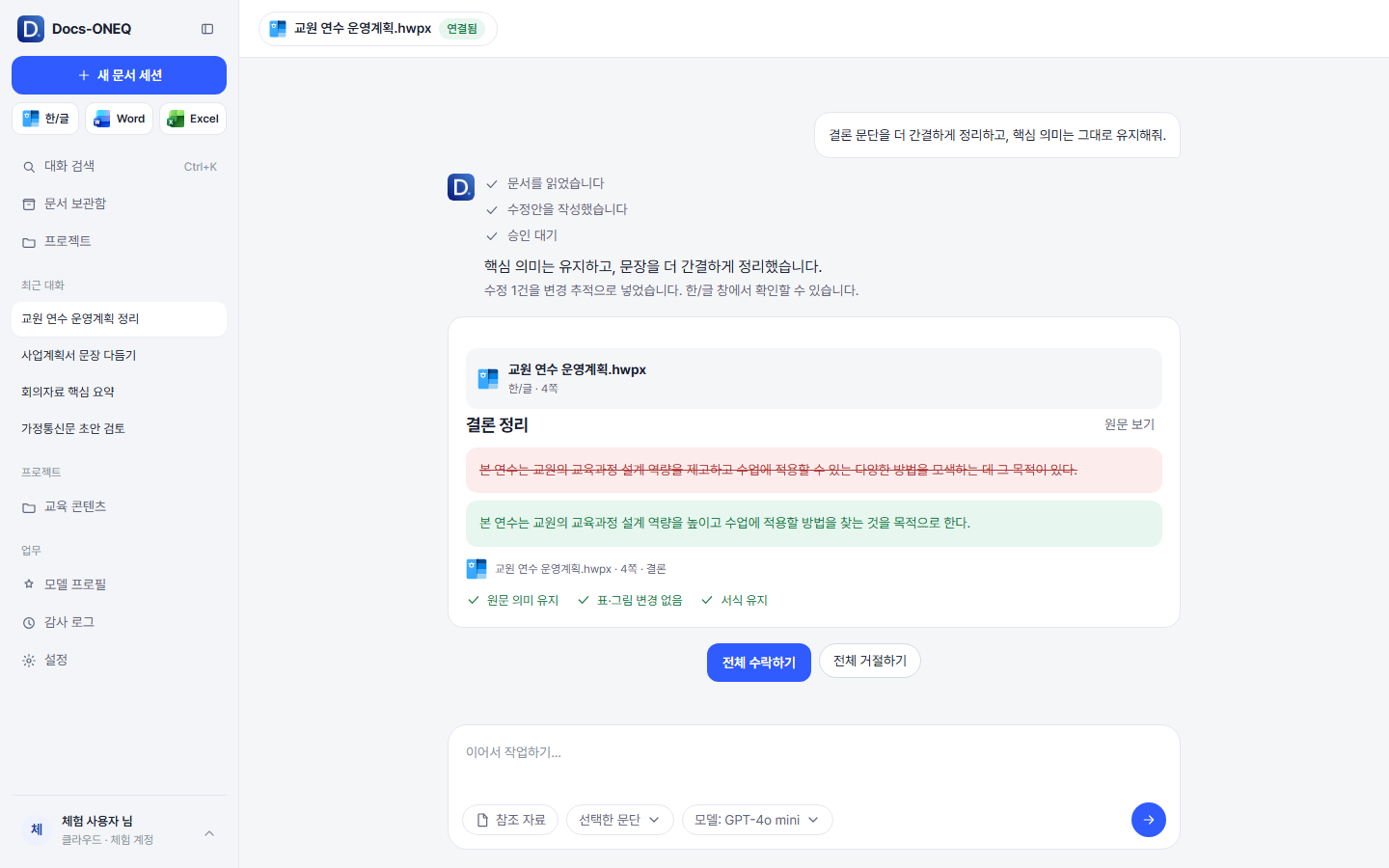
By default every edit shows an approval card first. Nothing you have not approved goes into the document.
Text and table edits in Hangul and Word stay as tracked changes and can be undone with Reject all (except picture replacements in Word). Docs-ONEQ never saves a file before you tell it to. If OneDrive AutoSave is on for a Word document, Word saves every change right away, so turn AutoSave off for those files.
The API key for your model connection is kept in Windows encrypted storage and is never shown on screen again.
See in one place how the edit, create and convert tasks of recent conversations ended: approved, rejected or failed. Deleting a conversation also deletes its records.
The browser trial walks you through the request, approval, review and audit log steps with sample documents. The trial is in English; the desktop app itself is in Korean. Some screens in it, such as on-premises processing for institutions, are not in the desktop app yet.